








Workflow builder
Contents
Workflows are a collection of steps that automate a process or deliver messages to your users based on your configured logic. In PostHog, you can create a workflow using our no-code workflow builder.
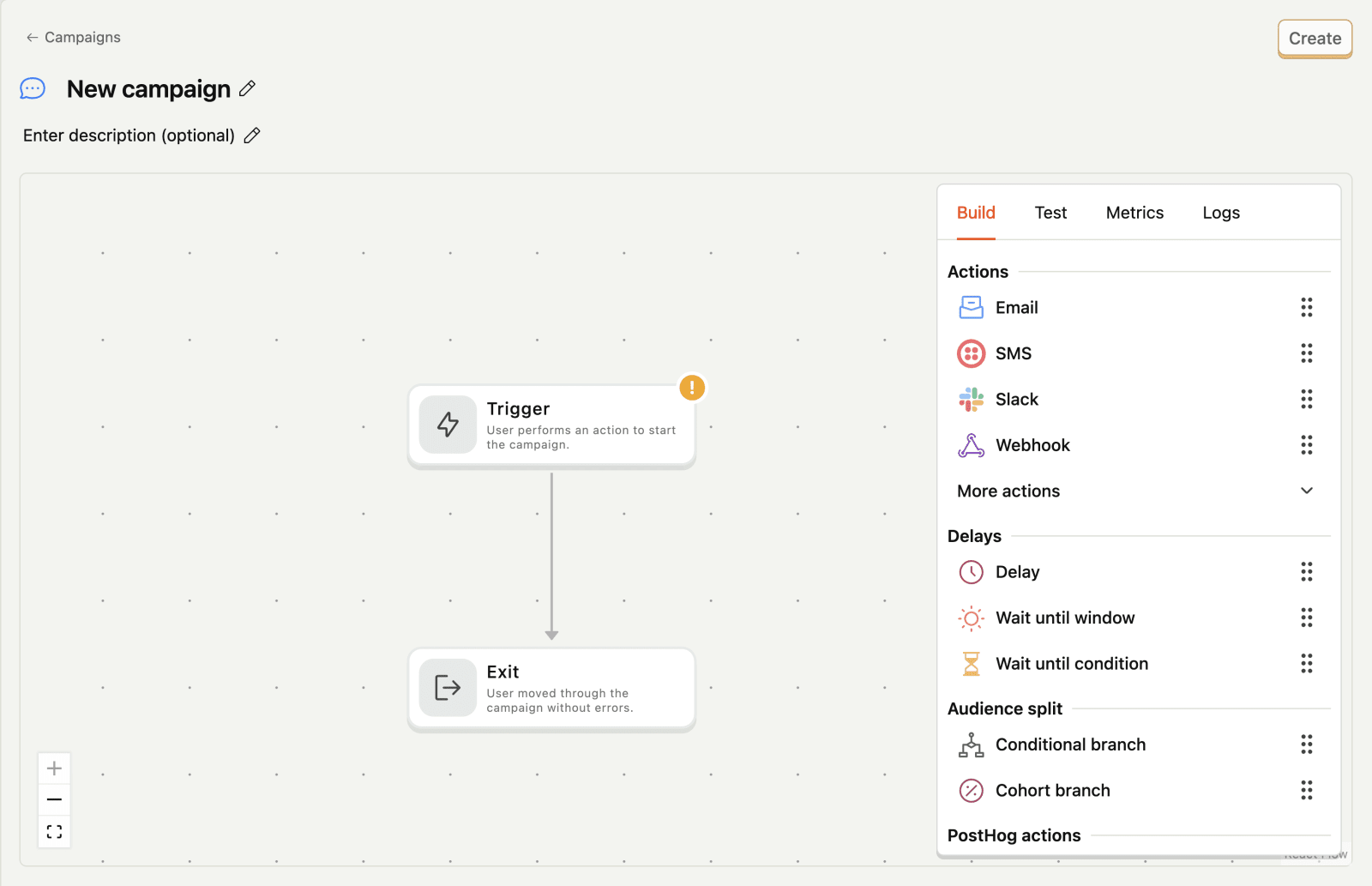
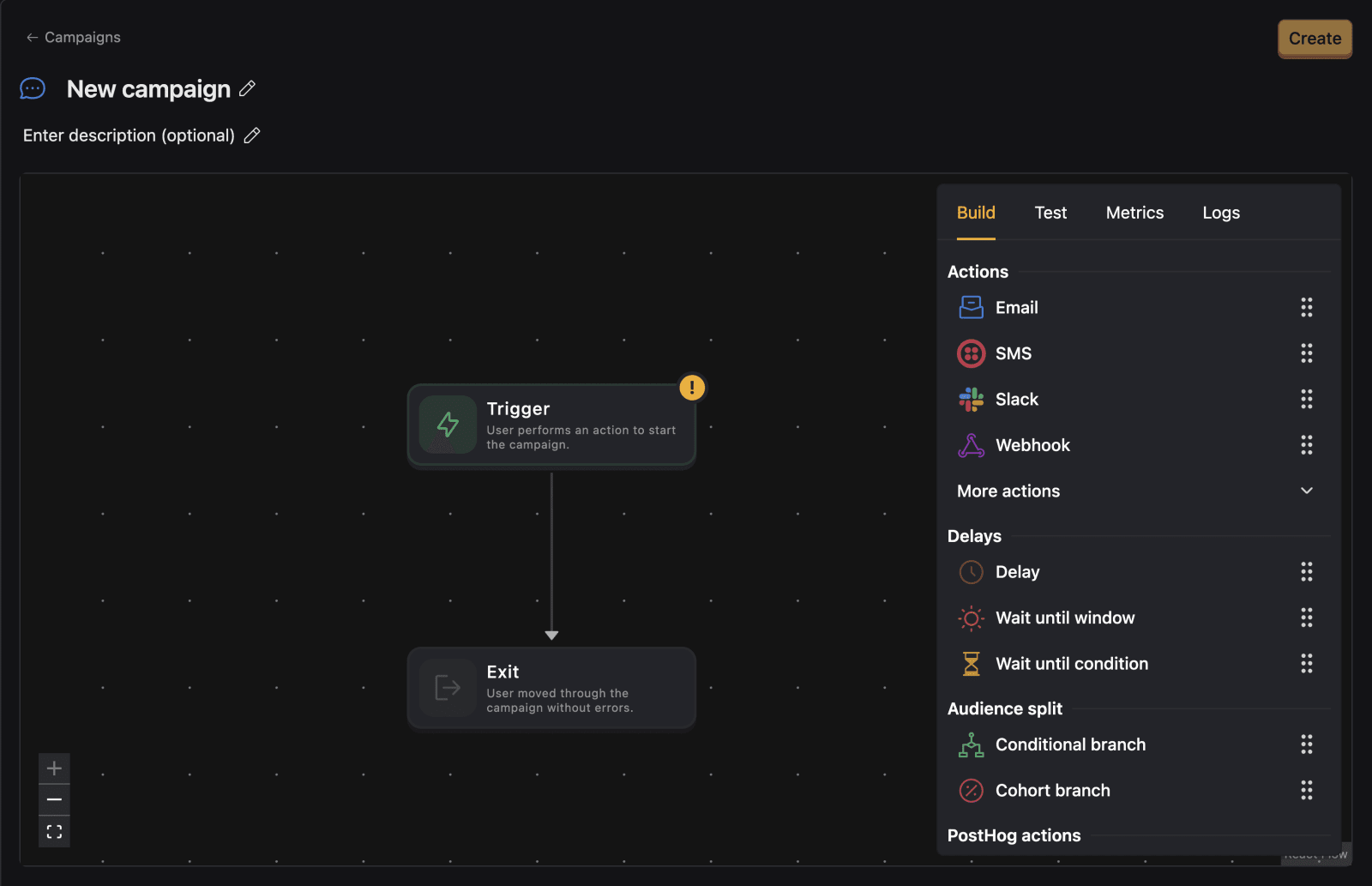
Workflows are composed of the following components:
| Component | Description |
|---|---|
| Triggers | What starts the workflow. We let you start a workflow when an event is performed (e.g. a user signs up), or programmatically via a webhook. |
| Dispatches | The messages you send, mail, slack, SMS, webhook, or any PostHog real time destinations. |
| Delays | Wait steps such as "wait 2 days" or "wait until condition is true." |
| Audience splits | Target and split your users so you can automate some action for them or send a message with more specificity. |
| PostHog actions | Change a person's properties, or trigger other events, once a person reaches a specific point in your workflow. |
Triggers
Every workflow starts with a trigger. Triggers represent actions taken by users that kick off the workflow. There are two types of triggers:
| Trigger type | Description |
|---|---|
| Event trigger | A captured PostHog event (e.g. signed up) |
| Webhook trigger | Programmatically start a workflow with a webhook |
Event triggers
Event triggers are any PostHog event. These can be manually or automatically autocaptured by our SDKs. They can be filtered by the event properties and persons properties attached to the event.
To filter your events, click on the three lines icon next to the event name and select Add filter.


Dispatches
Dispatches are the messages you send, mail, slack, SMS, webhook, or any PostHog real time destinations. There are 4 main types of dispatches:
| Dispatch type | Description |
|---|---|
| Send an email natively through PostHog. Configured in the channels section. | |
| Slack | Send a message to a slack channel. Configured in the channels section. |
| Webhook | Call external systems. Configured in the channels section. |
| CDP destinations | Use any realtime destination as an dispatch step to deliver messages to users or other services. |
Delays
Delays help you control the timing of your messages. There are 3 types of delays:
| Delay type | Description |
|---|---|
| Fixed wait | Wait for a fixed amount of time (minutes/hours/days). |
| Wait until condition | Wait until a specific condition is met (e.g. user has property set to a specific value). |
| Wait until time window | Wait until a specific time window (e.g. only send on weekdays 9-5). |
You can see an example of a delay in the email drip campaign tutorial.
How "Wait until condition" works
The Wait until condition block periodically re-evaluates your condition until it's met or the wait time expires. It's important to understand what data is checked:
What the condition evaluates against:
- Person properties – Fresh values are re-fetched from the database on each check. This is ideal for conditions like "wait until
onboarding_completedistrue" since person properties can be updated by other parts of your application. - Workflow variables – Current values that may have been updated by previous workflow actions.
- The original trigger event – The event properties from when the workflow started (these don't change).
What the condition does NOT do:
- It does not wait for new events to come in. If you need to react to a specific event being captured, use an event trigger in a separate workflow instead.
- It does not monitor for new events with matching properties.
How the re-evaluation works:
- The condition is checked periodically (approximately every 10 minutes) until either:
- The condition is met → the workflow continues down the "match" branch
- The maximum wait time is reached → the workflow continues down the "no match" branch
This makes "Wait until condition" perfect for scenarios where you're waiting for a person property to change (e.g., waiting for a user to complete onboarding, upgrade their plan, or verify their email).
Audience splits
Audience splits help you target your automation or messages to specific groups of users. There are 2 types of audience splits:
| Audience split type | Description |
|---|---|
| Conditional branch | Segment by event or persons properties. |
| Random branch | Experiment or A/B test. |
These can be used to target users based on their behavior or properties.
PostHog Actions
PostHog Actions allow you to change a person's properties, trigger other events, or chain workflows together once a person reaches a specific point in your workflow. There are 2 types of PostHog actions:
| PostHog action type | Description |
|---|---|
| Capture Event | Trigger a PostHog event. This can be a useful way to chain workflows together, or track the effectiveness of workflows in analytics dashboards. |
| Update Person Properties | Set a specific person property, or create a new one. This can be a useful way to chain workflows together. |